
📝What you need to send to Trilion
- Screenshot of the issue you are experiencing
- tKit version + Add-on version where you are experiencing the issue
- Terminal output error
💡This guide will share how to get the 2nd and 3rd step
🔍Checking for tKit version
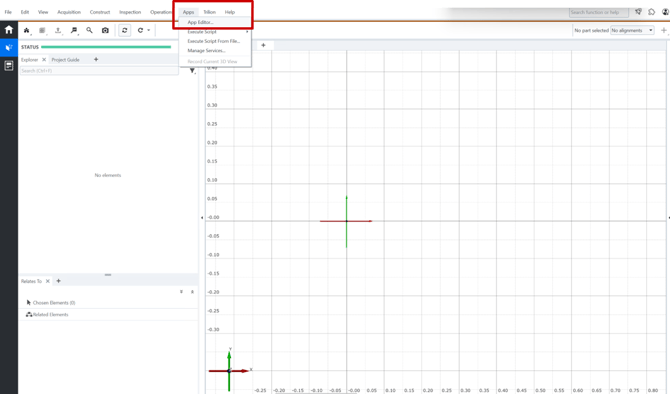
- Open ZEISS Correlate
- Go to Apps (v2025) or Add-ons (v2023)
- Proceed to App Editor
🔍Check for tKit version
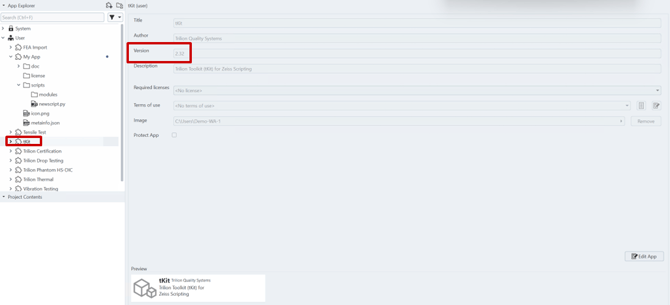
- In the app editor, localize in the explorer, a puzzle piece icon with the word "tKit" next to it.
- In the menu that opens localize the version and share with Trilion.
🔍Check for Add-on version
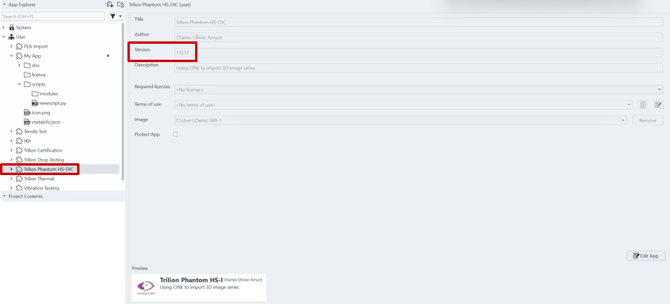
- Similar to the previous step, in the app editor, localize in the explorer, a puzzle piece icon with the corresponding Add-on name next to it.
- In the menu that opens localize the version and share with Trilion.
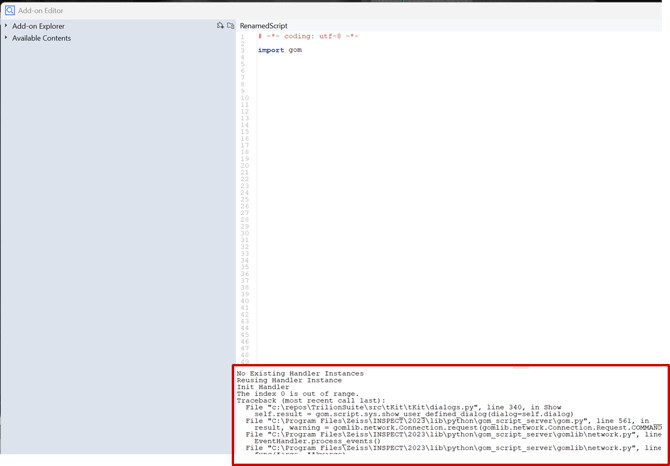
🔍Check error from the terminal
- Run the script while being on the App Editor and then check for the terminal output (Check the script add-on list at the end of the article).
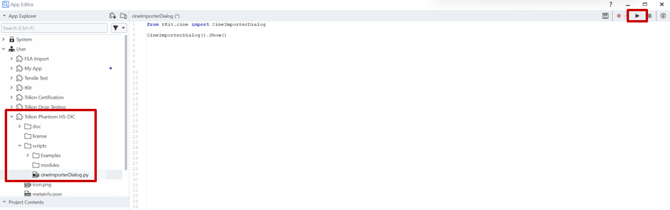
- Copy the text and share with Trilion
🧩Scripts to run for each add-on
- Trilion Calibration Manager → calibrationManagerMain.py
- Trilion Certification → createNewCertificationWorkflow.py
- Trilion Drop Testing → dropTestMain.py
- Trilion Phantom HS-DIC → cineImporterDialog.py
- Trilion Thermal → ThermalControlBoard.py