⚠️Licensing is required to access specific Trilion features
Please review the following instructions to confirm your license status and installation process.
🧑💻Installation
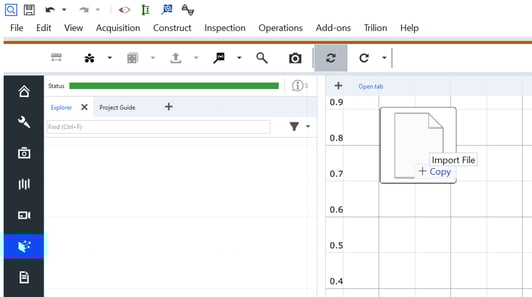
Step 1: Drag and Drop the Add-on
- Simply drag and drop the add-on file anywhere onto the main screen of ZEISS Correlate once the application is open.
Step 2: Access the AppData Folder
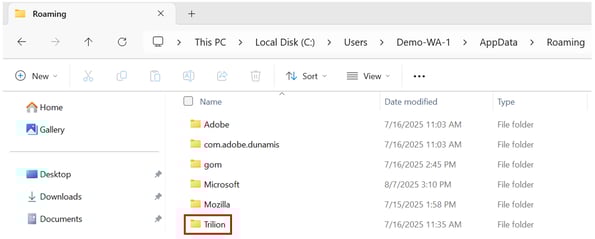
- Open File Explorer.
- In the address bar, type %AppData% and press Enter.
- Then go to the Roaming folder.
Step 3: Create Required Folder Structure
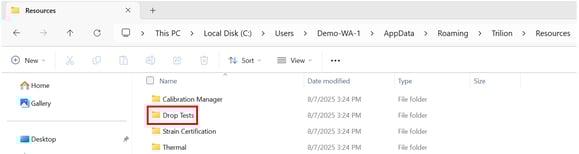
Navigate or create the following folder path:
%AppData%\Roaming\Trilion\Resources\Drop Tests
- If the Trilion folder does not exist, create it.
- Inside Trilion, create a folder named Resources (if it doesn't already exist).
- Inside Resources, create a folder named Drop Tests (if it doesn't already exist).
Step 4: Required Files and Folders
Inside the Drop Tests folder, ensure the following items are present:
- fixtures.csv
- sampleComponents.csv
- fixtures folder
- sampleComponents folder
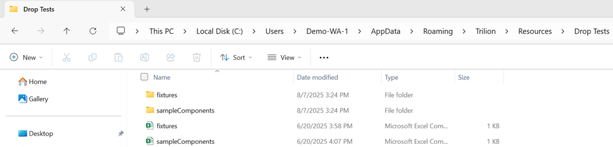
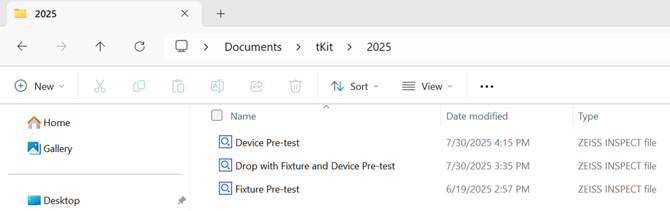
⚠️Before using the tDrop Add-on, at least three (3) ZEISS project files need to be present.
🗃️Prerequisites after installation
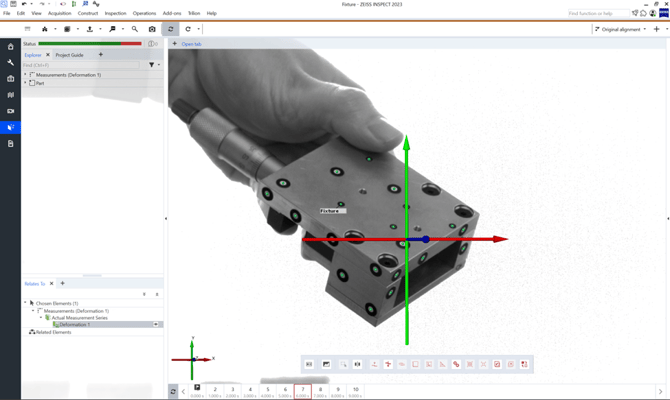
1) Fixture Project File
- This file should represent the fixture used during the test.
- It must include uncoded markers, at least 3 to 5 per side, visible from all camera views.
- Include clear images of all sides of the fixture to ensure full visibility and accurate tracking.
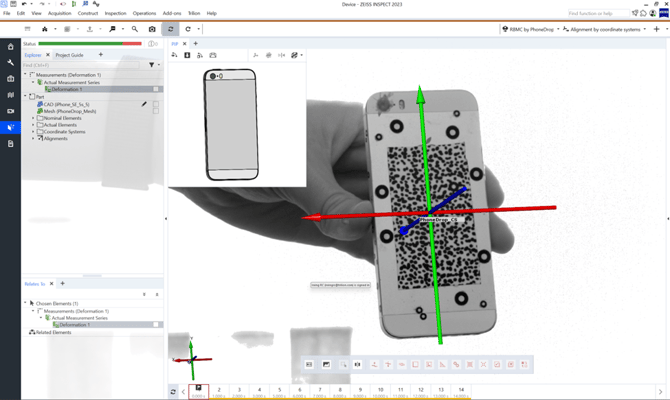
2) Device Project File
- This file should represent the device being tested.
- Like the fixture, it must have 3 to 5 uncoded markers per side and include multiple images showing all sides.
- Additionally, this file must include a CAD model of the device. The CAD will be used for alignment and tracking during analysis.
3) Combined Test Campaign Project File
- This file should contain only images (stages) where both the fixture and the device are visible by both cameras from a drop test.
- The test must be conducted within the defined measurement volume, with the fixture present throughout the entire sequence.
- The file can include either multiple single images before impact, or an entire complete single drop event, from release to impact.
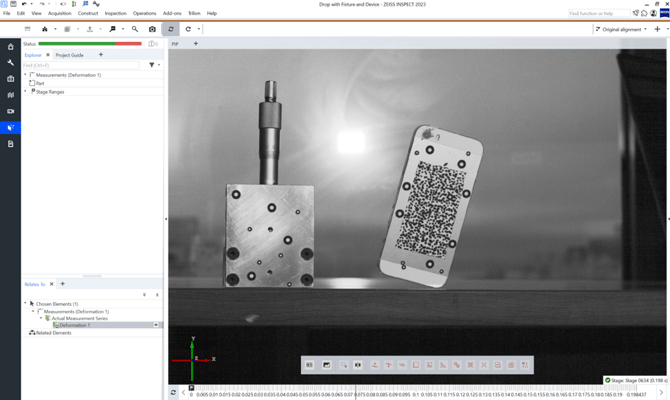
These 3 files can be saved in any preferred folder location. This is independent from the prior configuration using the %AppData%.