
⚠️Licensing is required to access specific Trilion features.
Please review the following instructions to confirm your license status and installation process.
✅Licensing
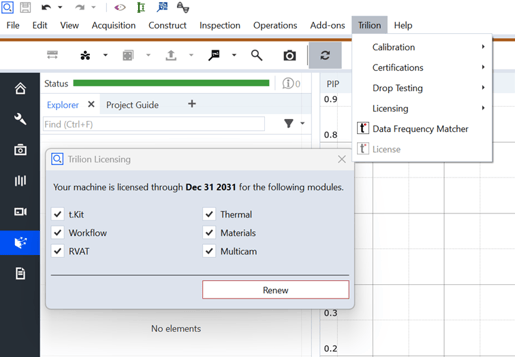
To use the tKit add-on, ensure you have an active license. If you're unsure about your license status, please verify it within the software interface. Refer to the image below for guidance.
Navigation:
Trilion ➡️ License ➡️ Confirm that tKit is checked and the license is still valid.
🔍 Additional Licenses Available
Trilion also offers licenses for specialized applications, including:
- HS Drop Testing
- Certification Measurement
- Thermal Testing
- Calibration Manager
- HS Phantom Cine Importer
- RVAT
- More in the works...
For more details or assistance, please contact your Trilion representative.
🧑💻Installation
Step 1: Drag and Drop the Add-on
- Simply drag and drop the add-on file anywhere onto the main screen of ZEISS Correlate once the application is open.
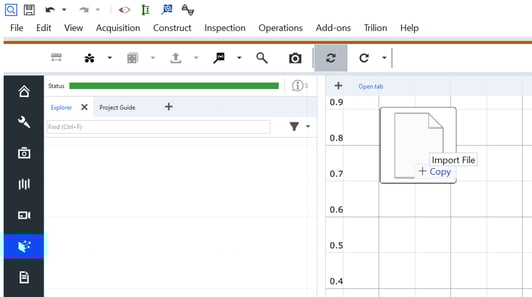
If your license is valid, you will receive one or more add-on files depending on the selected applications. These files enable the functionality of the licensed modules within the Trilion software.
Once the file is dropped into the Correlate software, a confirmation message will appear stating:
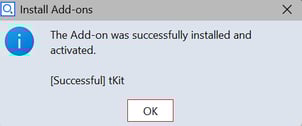
This indicates that the license and add-on file have been properly recognized.
Installation for tKit modules, such as HS Drop Testing and Certification Measurement, includes additional setup steps. Please refer to their individual guides for detailed instructions.