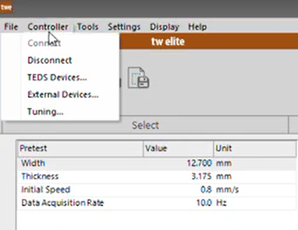
- Navigate to "Controller" and select "TEDS Devices...".
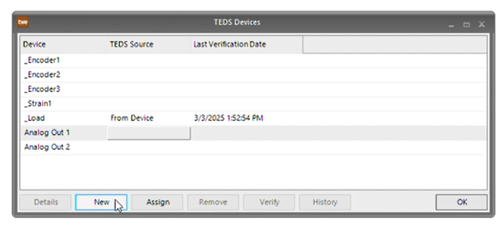
- Select the table entry in the TEDS Source column and Analog Out 1 row and click "New".
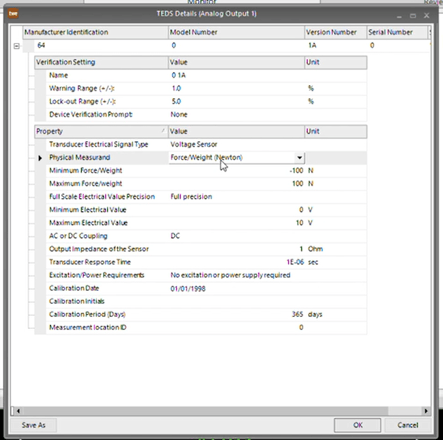
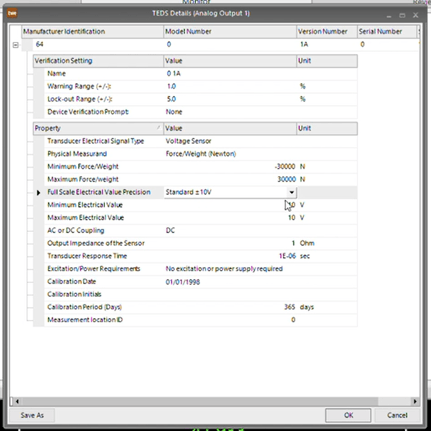
- In the drop-down selection for Physical Measurand, select "Force/Weight (Newton)".
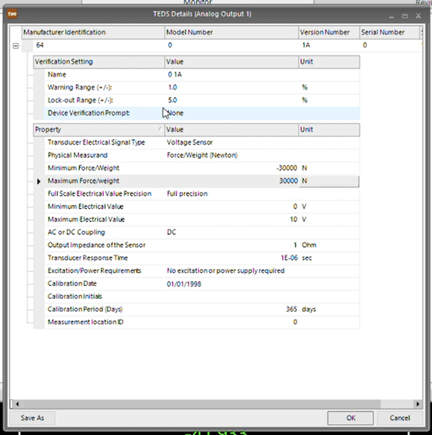
- Change the minimum and maximum Force/Weight inputs to reflect the installed load cell. In this example, we are using a 30kN load cell.
- In the drop-down selection for Full Scale Electrical Value Precision, select "Standard ±10V".
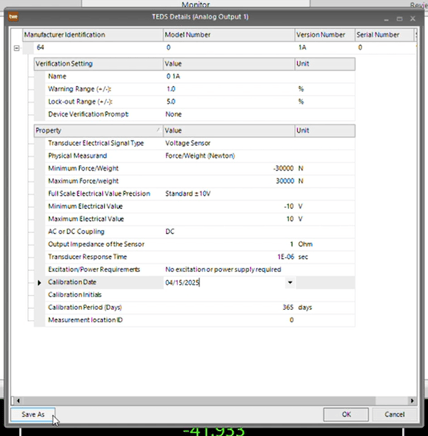
- In the drop-down selection for Calibration Date, select the current date.
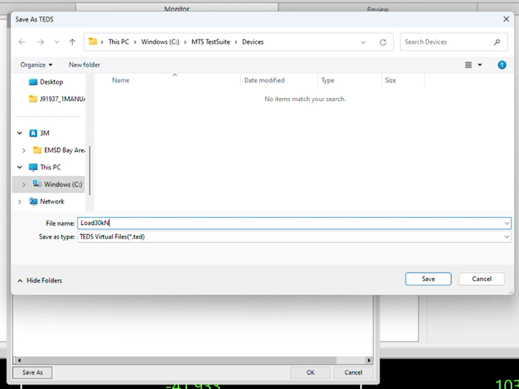
- Click "Save As" in the bottom left corner and save this analog output profile for future use.
- Repeat Step 2, this time selecting the cell in the TEDS Source column and Analog Out 2 row.
- Set the Physical Measurand to "Distance (mm)" and set the minimum and maximum distances. In this example, we used -100mm and 100mm.
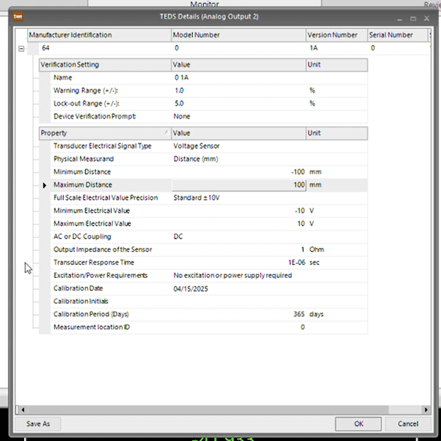
- Repeat Steps 5, 6, and 7 for this distance analog output.
- Select the "Define" tab, followed by "Resources", and click "Add Resource..." and "Analog Output".
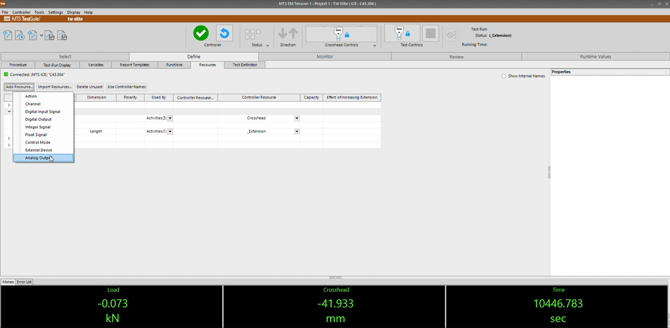
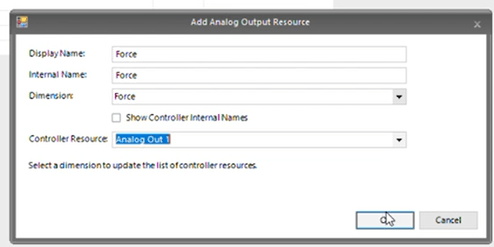
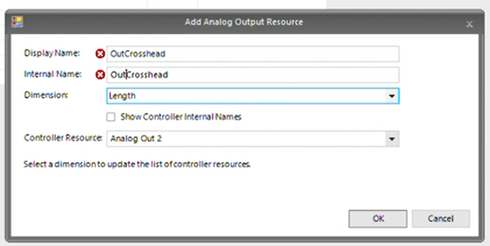
- Complete an analog output resource for Force and Length as shown below. In this example we named the force "OutForce" and the length "OutCrosshead". The dimension for force will be force and length will be length. Ensure the correct controller resource is selected.
- These two new outputs should now be listed under "Analog Outputs".
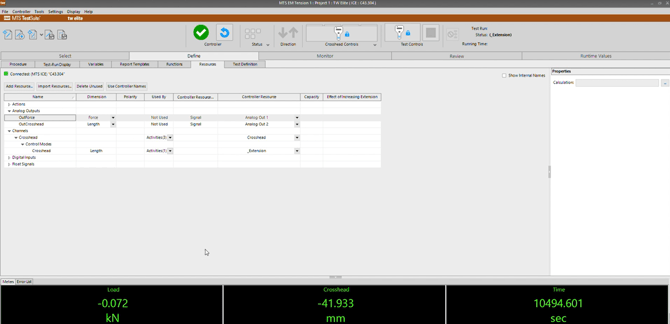
- Select the "OutForce" cell under "Analog Outputs" and select the "..." button next to "Calculation:" in the "Properties" tab on the right side of the screen.
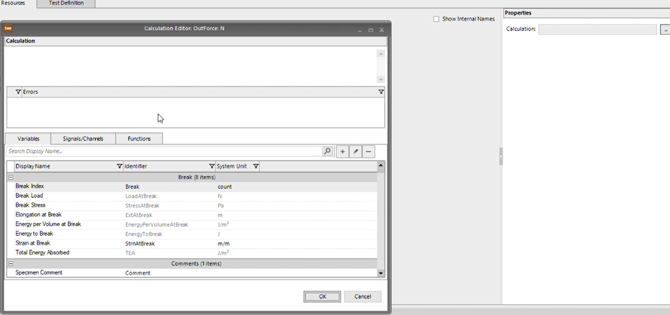
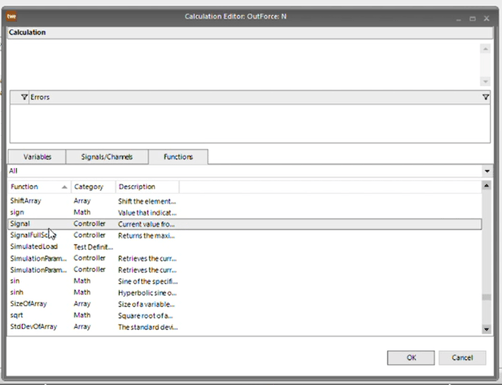
- Navigate to "Functions", select the "All" drop-down option, and double-click on "Signal".
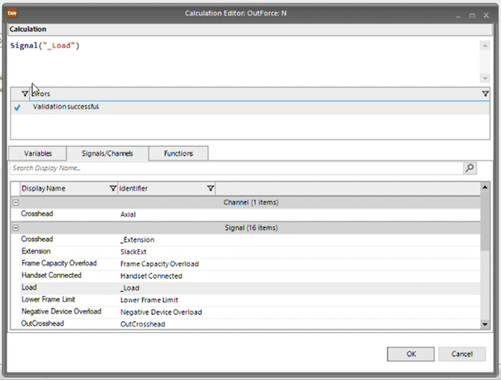
- Highlight the "SignalName" portion of the calculation, select the "Signals/Channels" tab, and double-click "Load". Your end calculation should say "Signal("_Load")". Click "OK" to continue.
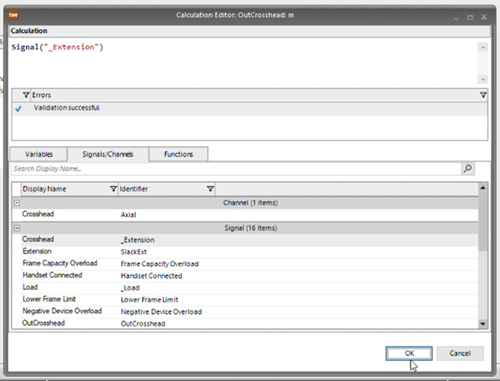
- Repeat Steps 14, 15, and 16 for "OutCrosshead", selecting "Signal" under "Functions", highlighting "SignalName" and selecting "Crosshead" under "Signals/Channels". Your end calculation should say "Signal("_Extension")".
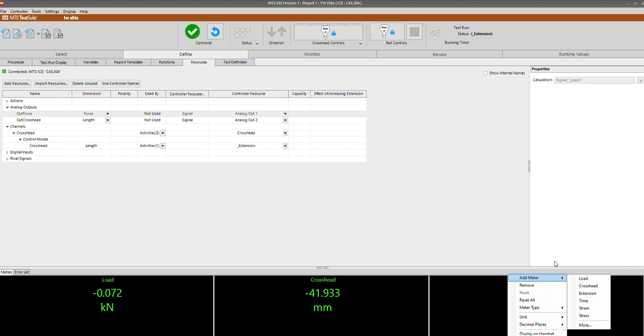
- Add OutForce and OutCrosshead to your meter displays by right-clicking any meter and selecting "Add Meter" and "More...".
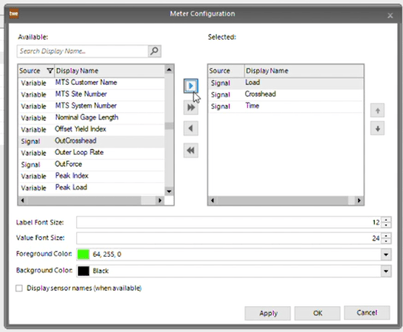
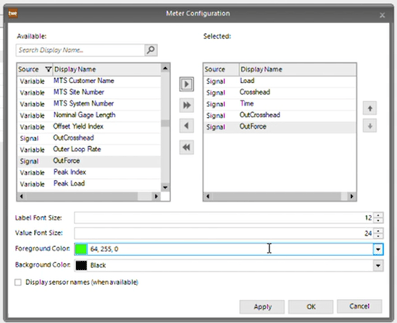
- Move the signals OutForce and OutCrosshead from the "Available" list to the "Selected" list using the single right arrow after selecting each.
- Check that your analog inputs on the ARAMIS Controller are properly configured and once both BNC cables are connected, use the live tracking feature in the Zeiss Correlate setup workspace for the ARAMIS controller to determine if the signals received are the correct output signals from the MTS load frame.
English