
This method is mainly used when no ARAMIS system is currently connected, but you still want to import and prepare a calibration file for later use.
Step 1 – Open ZEISS Correlate
Launch ZEISS Correlate on your workstation. No system connection is required for this workflow.
Step 2 – Navigate to the Preferences Menu
From the top menu bar, follow this path:
Edit → Preferences → Templates → Calibration Objects
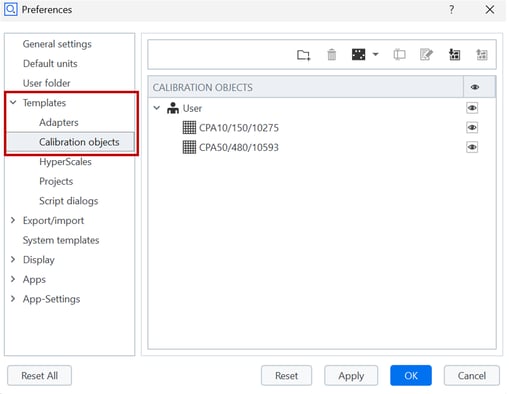
Step 3 – Review the Currently Loaded Calibration Panel
At the top of the calibration panel interface, verify whether a calibration panel is already selected. Else a new can always be added.

If a calibration panel is loaded:
- Confirm that all information is correct, including
- Ambient temperature
- Calibration object details
- If everything is correct, continue with the calibration process.
Step 4 – Import the Calibration File
Within the calibration interface:
- Click the folder icon to import a calibration file from a local directory or USB thumb drive
- Select the appropriate calibration file (for example, a CPA10 panel with the .calobj extension)

For any CC40 or CPA panels, you can only import the .calobj file. This file is included on the dongle. You can usually find it in the manual or inside the drawer if you have a full station.
Step 5 – Verify Calibration Object Parameters
After importing the file:
- Review all calibration object parameters
- Confirm that the distance values and dimensions match the information printed on the calibration object tag
- Use the Edit icon to inspect or modify the distance definitions if needed
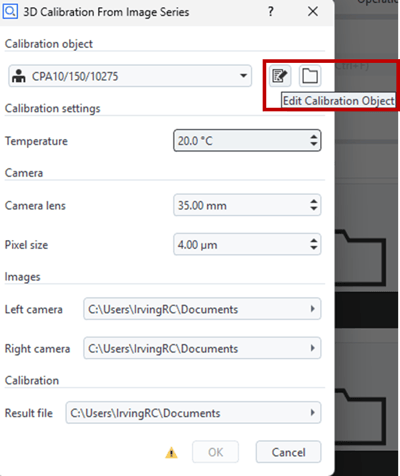
Distance Definition for Calibration Objects
If needed, two distances can be defined as following:
- Distance 1 is defined from the top‑left coded marker to the bottom‑right coded marker
- Distance 2 is defined from the top‑right coded marker to the bottom‑left coded marker
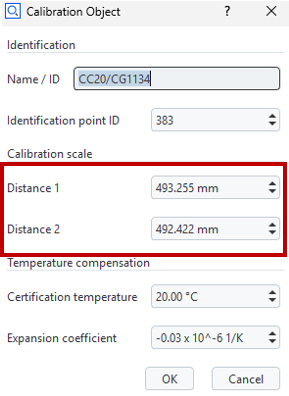
Example with CP20 (Calibration Panel):
Example with CC20 (Calibration Cross):


Step 6 – Save and Continue
Once all parameters are verified:
- Click OK to confirm the calibration object
- The calibration file is now available for use when performing calibration with an ARAMIS system
✅ Notes & Best Practices (Optional Section)
- Always verify calibration object values after importing a file
- Ensure ambient temperature is accurate before proceeding
- Re‑calibrate if the setup or environment has changed